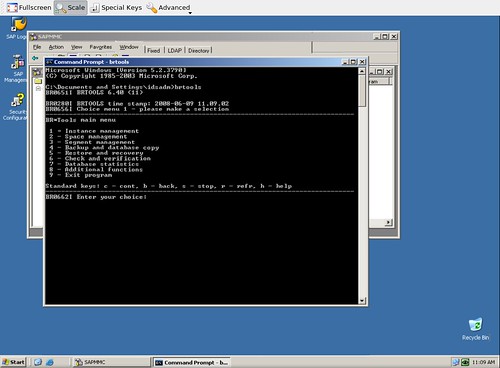
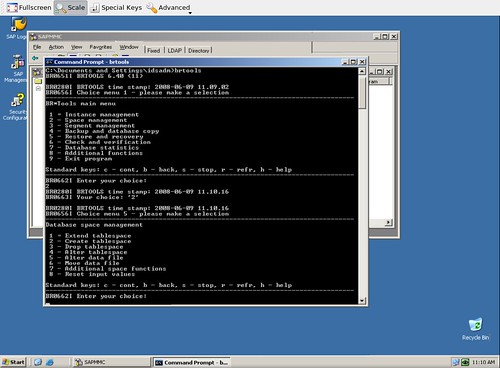
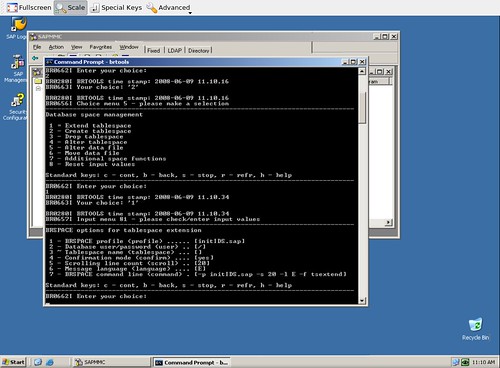
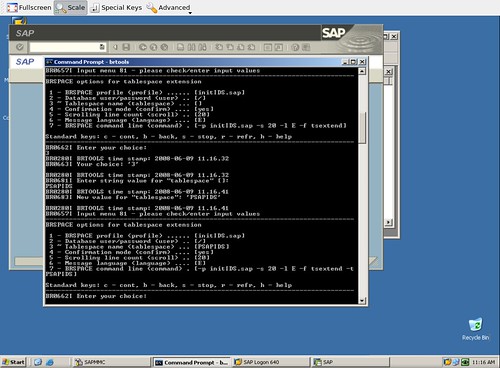
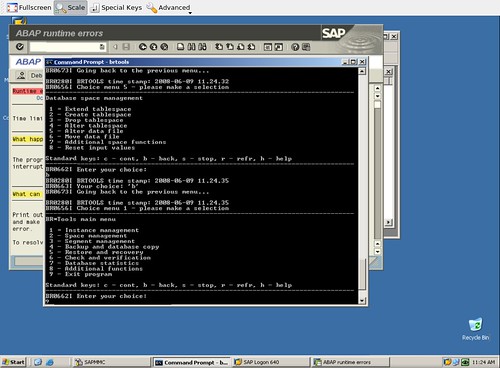
The R/3 System can be either active or closed when you extend a tablespace.
Do not shut down the database system if you want to add a data file to a tablespace.
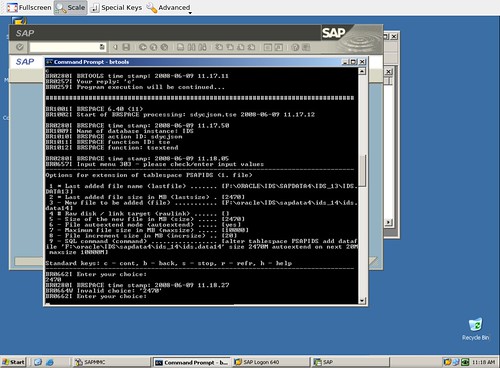
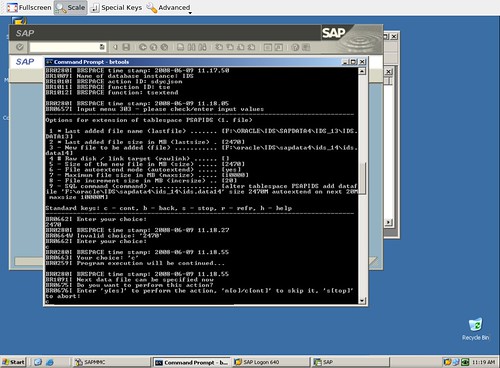
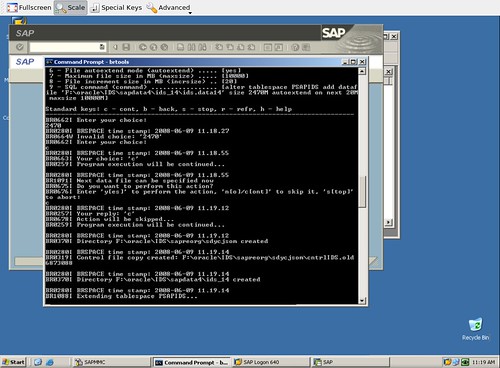
- Select Tablespace and enter the name of the tablespace you want to extend. Select Alter tablespace
Add data file . The following menu options are displayed, depending on whether you want to add a file (in file system) or a raw device (on raw device): - You can change the default values for the size and path of the new data file.
| File system | Raw devices | |
a - | File system or raw device | File system or raw device |
b - | File size | Enter raw device name |
c - | Select path | Select raw device |
d - | Alter suggested path | File size on raw device |
e - | Display current files | Display current files |
s - | Start (Add datafile) | Start (Add datafile) |
q - | Return | Return |
File system or raw device: SAPDBA displays whether you are working in a file system (file system) or on raw devices (raw device). At this time you can choose again between working in the file system or on raw devices. If you are working on raw devices, the ORACLE name of the raw device and the required raw device ID are displayed. See also SAPDBA Support for Raw Device Configuration.
File system:
- File size: SAPDBA calculates the size of the new data file from the previous size of the tablespaces using one of the following percentages:
– Percentage from the SAPDBA profile ( init
– Default value: 30 percent of the tablespace size when no entry exists for this tablespace in the SAPDBA profile.
See tspadd_tspname and Specifying the File Size.
- Select path: SAPDBA displays a list of all sapdata directories and highlights the directories that are already used by the tablespace and its corresponding D/I tablespace ( used (
You can decide which of the displayed sapdata directories you want to select. If you specify a different directory and this results in the files being moved to a different disk, this may (when the data and index tablespace are on the same disk) cause performance losses due to competing I/O accesses.
See New Path.
- Alter suggested path: SAPDBA suggests a path for the data files according to the SAP naming conventions or displays the path which you selected with Select path . Only the first part of the complete target directory is suggested (
See Naming Convention.
You can define another file name (see New Path). In this case SAPDBA checks whether there is sufficient storage space available in the file system which was suggested to store the new data file.
Raw Device:
- Enter raw device name:Enter the name of the required raw device. You can enter the complete path here. If you do not do so, the path defined under select raw device will be used.
SAPDBA checks whether:
- the raw device exists
- ora
- an ORACLE file of
- a file system (mounted) resides there.
SAPDBA does not check whether the raw device is used by another application and whether the disk is partitioned and the partitions are reserved.
- Select raw device in path: SAPDBA displays a list of the raw devices which can be used to extend the tablespace (owner: ora
You can decide which of the displayed raw devivces you would like to select. SAPDBA informs you if the naming convention does not correspond to the SAP norm.If necessary, change the raw device ID as user root .
- File size on raw device: You can reduce the size after selecting a raw device, but the space which remains will not be used.
Display current files: SAPDBA displays the data files of the tablespaces and their sizes.
Depending on the operating system, the database may be limited to a certain number of data files (usually at least 254 files with maximum 2GB per file). If an extension moves you closer to this limit, you should reorganize the tablespaces that contain a large number of data files. This will occur only rarely, however, since the number of available data files (254) is almost always large enough. Therefore, do not reorganize tablespaces of the database until you actually reach this limit.
See Limitations of the Database System.
- Select Start (Add datafile) to accept the file specification.
- At this point, SAPDBA checks the block sizes. The following values are displayed:
- SAPDBA generates a log:
filesystem block size: | |
filesystem fragment size: | |
Oracle block size: | |
If the sizes do not agree, an appropriate warning message appears and SAPDBA will ask whether you want to continue.
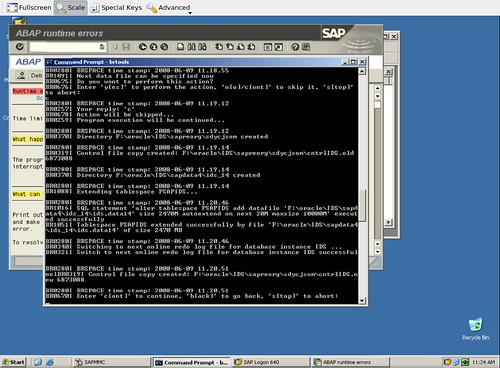
Successful tablespace extension: When SAPDBA has created the new data file, it automatically branches to the Backup database menu, to enable you to back up the extended tablespace.
See Backup Recommended.
Failed tablespace extension: If the data file could not be added, SAPDBA deletes the corresponding directory or symbolic link and cancels the tablespace extension. Your system and database are unchanged.
See SAPDBA Troubleshooting.
Use the ORACLE ALERT and trace files to analyze and correct the problem, then repeat the tablespace extension procedure.