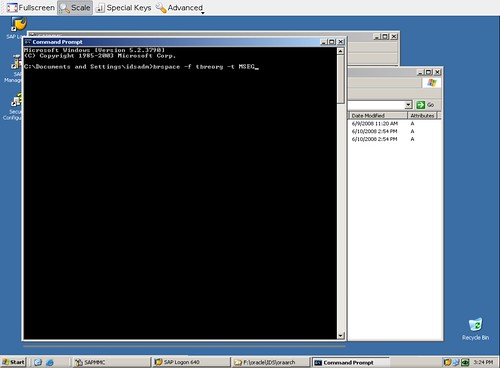
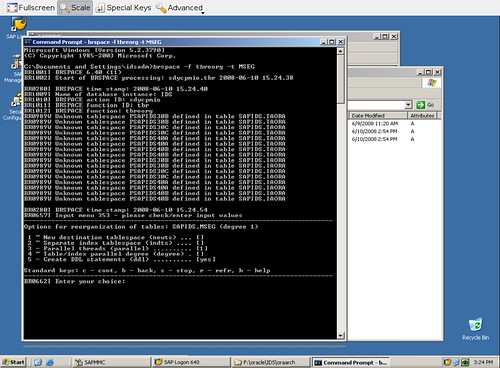
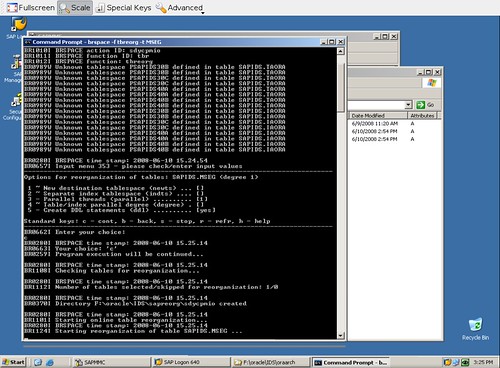
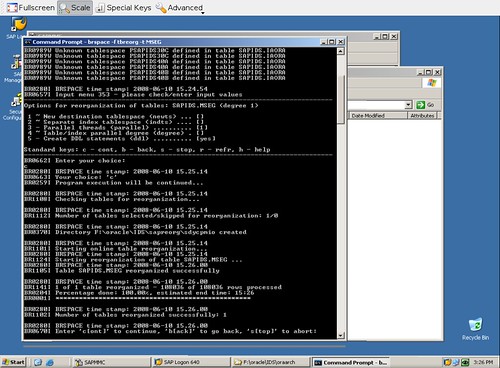
You can use quick mode to skip the higher-level menus in BRSPACE, including the menu to select the object of your chosen function.
You use quick mode from:
BRGUI or BRTOOLS menus with the title BRSPACE options for
The command line at operating system level
For quick mode, you must specify at least the function, the object name, and/or the action. The object – for example, a tablespace name if you want to extend a tablespace – varies according to the function that you choose. You can also enter additional options in quick mode.
 Note
Note
The alternative to quick mode is main menu mode, in which you only use the menus in BRSPACE to enter the options required to perform a function. Unless you know the object name, we recommend you to use main menu mode.
In quick mode, BRSPACE skips the menus in which you normally specify the function, the action, and/or the object name. They jump directly to the final input menu to let you enter the remaining required parameters and execute the function immediately.
The following graphic illustrates in outline how quick mode works:

Exceptions to quick mode
There are the following exceptions to quick mode:
Function dbshow to show database information.
If you do not enter the class of the information to be displayed, you see a menu displaying the different categories of information class:
Show database instance information
Show database space information
Show database object information
Choose the category and then the class that you require.
BRSPACE displays the requested information.
Alter functions:
dbalter to alter the database instance
dbparam to alter database parameters
tsalter to alter tablespaces
dfalter to alter data files
tbalter to alter tables
idalter to alter indexes
With these functions, you should also enter an action to specify what kind of alter function you require. If you do not enter an action in quick mode, BRSPACE prompts you to select an action before you can continue.
Multiple Objects
If you select multiple objects in quick mode, BRSPACE displays a list of objects for confirmation. If the list is not what you require, you can go back and make a new selection.
 Example
The following example shows quick mode from the command line:
brspace -f tsextend -t psapprd
BRSPACE starts by displaying the input menu for the function Extend tablespace. The field for the object name is filled with your entry.
You can now enter all required options and execute the function immediately.
The following example shows a command line entry for an alter function where the object (here, the database parameter) is specified, but not the action:
brspace -f dbalter -p audit_trail
BRSPACE starts by displaying the function main menu for the function that you entered, which is Alter database parameter in this example.
You must first select the action before BRSPACE can display the input menu to let you execute the function.
End of the example. NoteWhen you have finished executing a function and you choose back after starting BRSPACE in quick mode, the quick mode is deactivated and you can choose a new object to execute the function again. If you choose reset program status, BRSPACE restores your original object selection.
The exception to this is for the functions in segment management, where it makes no sense to display all tables or indexes, because the list would be too long.